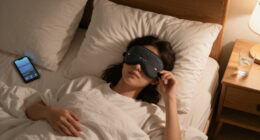
Set up your smart wake-up light alarm clock to gradually brighten before your chosen wake time, play an alarm sound if you want one, and keep a reliable backup. This guide is for beginners who have the clock, its app or controls, and access to a wall outlet. Allow about 20–30 minutes to configure and test it, then adjust the routine after trying it for a morning.

Get wellness gear delivered free with Prime
- Fast, free delivery on millions of items
- Prime Video, Amazon Music and more included
- Member-only deals all year

Hatch Restore 3 Sunrise Alarm Clock and Sleep Sound Machine, Putty
- ✔ Alarm: Sunrise alarm
- ✔ Connectivity: 2.4 GHz Wi-Fi and Bluetooth
- ✔ Sleep sounds: 80+

AFEXOA Sunrise Alarm Clock with Wake-Up Light and White Noise Machine
- ✔ Model: BL20
- ✔ Alarm: Dual alarms; separate weekday and weekend schedules
- ✔ Sounds: 30 non-looping sounds

Sunrise Alarm Clock with App Control, Wake-Up Light, Sound Machine, FM Radio, and Bluetooth Speaker
- ✔ Model: JN01-White
- ✔ Alarms: Up to 4 via app; 2 via device buttons
- ✔ Connectivity: Bluetooth; no Wi-Fi
Difficulty: Beginner | Time: 20–30 minutes, plus one morning to evaluate the wake-up routine
What You’ll Need
Tools & Materials:
- Smart wake-up light alarm clock and its power adapter
- Phone or tablet with the clock’s companion app, if the model uses one
- Home Wi-Fi name and password, if the clock requires Wi-Fi
- A second alarm clock or phone alarm for the first few mornings
Knowledge:
- Basic use of a phone app or the clock’s buttons
- Your intended wake time and the days you need the alarm
Keep the clock’s model name and setup instructions nearby. App menus and features vary by brand. Place the clock where its light can reach your face without shining directly into your eyes, and use a backup alarm while you learn how the new routine works.
Hatch Restore 3 Sunrise Alarm Clock and Sleep Sound Machine, Putty
The Hatch Restore 3 makes the most sense when we want one device to shape both sides of the night: a quieter bedtime environment and a gentler wake-up. Its sunrise alarm works alongside customizable lighting and a dimmable digital clock, so we can build a routine without leaving a bright display on throughout the night. More than 80 sleep sounds give it a broader sound selection than the seven natural sounds on the BIB_WJ, which makes Hatch the more complete sleep-and-wake package on paper.Its smart features come with a clear dependency: it connects through 2.4 GHz Wi-Fi and Bluetooth, and new subscribers receive a 30-day Hatch+ trial, but continued premium access requires a subscription. That matters if we expect to rely on the full content library over time. AFEXOA is a simpler alternative for shoppers who prioritize dual alarms and scheduled weekday routines over a large content ecosystem. Hatch also needs corded power, so none of its light and sound routines are portable.We rank it first because it combines more of the core wake-up-light experience in a single bedside device than either rival. We should choose it for the integrated routine and extensive sounds, while treating the subscription terms as part of the buying decision rather than a minor detail.
Pros:
- Combines sunrise alarm, customizable lighting, and a dimmable digital clock.
- More than 80 sleep sounds provide the broadest sound library in this lineup.
- Wi-Fi and Bluetooth connectivity support a connected bedside routine.
- A 30-day Hatch+ trial is included for new subscribers.
Cons:
- Continued access to Hatch+ premium content requires a subscription after the trial.
- Corded power limits placement to locations near an outlet.
Best for: People who want sunrise waking, customizable bedside lighting, a dimmable display, and a large sleep-sound selection in one device.
Not ideal for: Buyers who want all premium content without a recurring subscription, or who need an alarm clock that works away from a power outlet.
Bottom line: We recommend Hatch Restore 3 for the most complete sleep-and-wake feature mix, as long as its subscription model fits our routine.
“We recommend Hatch Restore 3 for the most complete sleep-and-wake feature mix, as long as its subscription model fits our routine.”
AFEXOA Sunrise Alarm Clock with Wake-Up Light and White Noise Machine
The AFEXOA BL20 is our practical pick for a shared bedroom or a household where schedules change through the week. Its dual alarms have separate weekday and weekend schedules, a useful distinction from the BIB_WJ, which supports up to four alarms through its app but only two through the device buttons. AFEXOA also provides unlimited nine-minute snoozes, so we can keep the alarm setup simple even when more than one wake time is needed.Its routine features extend beyond the morning. The clock offers 30 non-looping sounds, 20 brightness levels for night lighting, and sleep timers from 15 to 180 minutes that turn off lights and sounds. The stated sunrise simulation gradually brightens from 1% to 100%, giving us a defined light transition. Compared with Hatch, AFEXOA has fewer sleep sounds and no stated Wi-Fi or Bluetooth connection; it is better understood as a feature-rich standalone clock than a connected content platform.We place it second because its alarm scheduling and timed wind-down features are especially useful, but its smart connectivity is less developed than Hatch’s or the app control on BIB_WJ. It must remain plugged in, and the backup battery only preserves clock settings rather than powering the device. Choose it for flexible schedules and built-in routines; skip it if backup operation or phone-connected control is essential.
Pros:
- Dual alarms support separate weekday and weekend schedules.
- Thirty non-looping sounds and 20 night-light brightness levels offer flexible bedside settings.
- Sleep timers turn off lights and sounds after a selected interval.
- Sunrise simulation gradually brightens from 1% to 100%.
Cons:
- Must remain plugged in to operate.
- Backup battery preserves clock settings only and does not power the clock.
- No app, Wi-Fi, or Bluetooth connectivity is specified.
Best for: Couples or households that want two alarms, weekday and weekend schedules, and timed light-and-sound wind-down routines.
Not ideal for: People seeking app or Wi-Fi control, a large sound catalog, or a clock that can keep operating on backup battery power.
Bottom line: We would choose AFEXOA for flexible household scheduling and timed routines, accepting its limited connectivity and outlet dependence.
“We would choose AFEXOA for flexible household scheduling and timed routines, accepting its limited connectivity and outlet dependence.”
Sunrise Alarm Clock with App Control, Wake-Up Light, Sound Machine, FM Radio, and Bluetooth Speaker
The BIB_WJ JN01 stands out for buyers who want an alarm clock with more than sleep sounds. It combines sunrise and sunset lighting with FM radio and Bluetooth music playback, plus 11 light colors and seven natural sounds. App setup needs no registration, and the app can set up to four alarms. That gives it more alarm slots than AFEXOA’s two, though the comparison depends on using the app: the clock buttons set only two alarms.Its sunrise duration can be adjusted from 10 to 60 minutes, letting us choose a shorter or longer ramp into waking. The sunset countdown also supports a longer wind-down, from 5 to 180 minutes. These options make it more adjustable than a basic light alarm, while the FM radio and speaker add listening flexibility that neither Hatch nor AFEXOA lists. The tradeoff is a smaller sound selection than either rival, and the product information says its sleep-aid mode does not include pure white noise.Connectivity is limited to Bluetooth, with no Wi-Fi. That makes this a useful phone-linked bedside device, but less connected than Hatch’s Wi-Fi-and-Bluetooth setup. It also needs a power adapter. We rank it third because its app and media features are appealing, yet its best alarm flexibility depends on the app and its sound options are comparatively narrow. Choose it when radio and Bluetooth playback matter more than a large sound library.
Pros:
- App supports up to four alarms and does not require registration.
- Sunrise duration adjusts from 10 to 60 minutes, with a separate sunset countdown.
- FM radio and Bluetooth playback add listening options beyond natural sounds.
- Eleven light colors provide a range of bedside lighting choices.
Cons:
- No Wi-Fi; connectivity is Bluetooth only.
- Device buttons support two alarms, fewer than the app.
- Sleep-aid mode does not include pure white noise.
Best for: People who want app-set alarms, adjustable sunrise and sunset timing, and bedside access to FM radio or Bluetooth audio.
Not ideal for: Buyers who need Wi-Fi connectivity, pure white noise, or four alarms that can all be configured from the device buttons.
Bottom line: We recommend BIB_WJ for app-based control and radio or Bluetooth listening, while recognizing its smaller sound selection and lack of Wi-Fi.
“We recommend BIB_WJ for app-based control and radio or Bluetooth listening, while recognizing its smaller sound selection and lack of Wi-Fi.”
As an Amazon Associate we earn from qualifying purchases.
Before You Start
Check whether the clock needs Wi-Fi, an app account, or Bluetooth pairing. Plug it into a nearby outlet that will remain powered overnight; a smart plug that switches off on a schedule can interrupt the alarm. Do not cover the lamp with bedding or place it where it could fall. If the clock has a battery backup, check the manual for what the battery preserves: some models retain settings but cannot produce the full sunrise light without mains power.
Decide whether you want light only, light plus sound, or a separate backup tone. A gradual light may feel gentler, but it does not guarantee that you will wake up, particularly if the room is bright or you sleep facing away from the clock.
Step-by-Step Instructions
Step 1: Place and power the clock
Set the clock on a stable bedside table or shelf with the light facing toward your sleeping area. Keep it clear of curtains, paper, water, and anything that could block its vents or cover the lamp. Connect the supplied adapter to the clock and a wall outlet, then switch it on if the model has a power button.
Tip: Avoid placing the clock where sunrise light shines straight into your eyes at close range. Adjust the angle or move it farther away if it feels harsh during a test.
Check: The display or status light turns on, and the clock stays powered without a loose connection.
Step 2: Set the clock’s time and location
Open the companion app and follow its setup prompts, or use the clock’s controls if no app is required. Choose your country, time zone, and daylight-saving setting when offered. Set the current time and date, and select a 12-hour or 24-hour display that you can read easily.
Tip: If the clock syncs its time automatically, check that the selected time zone matches your location. A wrong time zone can shift every alarm even when the displayed minutes look correct.
Check: Compare the clock with your phone or another accurate clock. The time and date match, including AM or PM if shown.
Step 3: Connect the clock to the app or Wi-Fi
If your model uses an app, install the app named in the clock’s manual or packaging. Enable Bluetooth and location access if the app requests them for setup, then follow the pairing prompts. If the clock needs Wi-Fi, select your home network and enter its password in the app or on the clock. Use a compatible network band if the manual specifies one.
Tip: Keep your phone near the clock during pairing. If setup fails, check the network name and password carefully; some clocks cannot connect to networks that use a captive sign-in page, such as many hotel networks.
Check: The app shows the clock as connected, or the clock displays the connected status described in its manual. If the model works offline, confirm that its local controls respond.
Step 4: Create the wake-up alarm
Open the alarm settings and add an alarm for your intended wake time. Select the days it should repeat, such as weekdays or every day. Check AM or PM, or confirm the 24-hour time carefully. Save or apply the alarm; some models require a separate save button after you finish editing.
Tip: Set the alarm at the time you need to get out of bed, not at the time the sunrise should begin. The clock uses a separate duration setting to work out when to start brightening.
Check: The alarm appears in the app or display with the correct time and repeat days, and its enabled indicator is on.
Step 5: Choose the light and sound routine
Set how long the light should brighten before the alarm time. A common starting range is 20–30 minutes; use a shorter period if you prefer a quicker change or a longer one if you want a slower sunrise. Select a brightness level that is visible in your room. Choose an alarm sound and volume if you want sound, or turn sound off if you intend to wake by light alone.
Tip: Start with a moderate brightness and a sound level you can hear from bed. Increase either setting if the room is bright, the clock is far away, or you sleep through the first trial.
Check: The saved alarm settings show the chosen light duration, brightness, and sound options.
Step 6: Set a backup and check power behavior
Set a separate phone alarm or another alarm clock for the same wake time during your first few mornings. Read the manual’s notes on power loss, backup batteries, and whether the alarm must be enabled on the clock itself as well as in the app. If the device has a physical alarm switch or snooze control, learn where it is before going to bed.
Tip: Do not rely on a battery backup to run the lamp unless the manual says it supports that function. Some backup batteries keep only the time or alarm settings.
Check: You have a working secondary alarm and know which indicator or control shows that the smart clock alarm is enabled.
Step 7: Test the alarm before relying on it
Use the app’s test function if available. Otherwise, set a temporary alarm for a few minutes ahead, keep the clock powered, and watch the light and listen for the selected sound. Confirm that the light begins at the expected time before the alarm, the brightness changes as expected, and the sound plays if enabled. Turn the temporary alarm off afterward and verify your real alarm is still active.
Tip: Some sunrise routines start gradually, so a quick test may show only a dim light before the alarm time. Consult the manual if the test function previews the full routine differently from a scheduled alarm.
Check: The test produces the expected light and sound, and the saved wake alarm remains enabled for the correct days.
Step 8: Evaluate and adjust after the first morning
After trying the routine, decide whether you woke before, at, or after the scheduled time. If you slept through it, raise the brightness, increase the sound volume, move the clock closer, or add a stronger backup alarm. If the light woke you too early or felt abrupt, lengthen the ramp or lower the brightness. Change one or two settings at a time so you can tell what helped.
Tip: Check the enabled indicator each evening, especially after editing alarms or updating the app. Some clocks let you disable an alarm temporarily without deleting its schedule.
Check: The revised routine matches your wake time and feels noticeable without being uncomfortably bright or loud.
Common Mistakes to Avoid
- Setting the sunrise start time as the wake time. — Enter the time you want to wake up in the alarm field, then choose the light duration separately. The clock should calculate when the gradual brightening begins.
- Forgetting to enable or save the alarm after editing it. — Look for an enabled switch, bell icon, or active indicator after saving. Reopen the alarm settings to confirm the time and repeat days.
- Placing the clock where the light cannot reach the bed. — Keep the light unobstructed and angle it toward your sleeping area. Test from your usual sleeping position.
- Relying on the new alarm before testing it. — Run a test and use a separate alarm for the first few mornings. Confirm how the clock behaves after a power interruption.
Troubleshooting
Problem: The clock shows the wrong time or the alarm sounds at the wrong hour.
Solution: Check the time zone, daylight-saving setting, date, and AM or PM. Sync the clock again through the app, then verify its displayed time against a reliable clock.
Problem: The app cannot find or pair with the clock.
Solution: Move the phone close to the clock, enable Bluetooth, and restart the app. Confirm that the clock is in pairing mode. If Wi-Fi is required, check the network password and the supported network band in the manual.
Problem: The light works, but the sound does not play.
Solution: Open the alarm settings and check that sound is enabled, the selected volume is above zero, and the alarm is active. Run the sound test and check the manual for a separate physical volume control.
Problem: The alarm did not run after a power cut or overnight restart.
Solution: Reconnect power, check that the time is correct, and confirm the alarm is still enabled. Review the manual’s battery-backup limits, then test the alarm again before relying on it.
What Success Looks Like
The clock displays the correct local time and date, and its saved alarm is enabled for the intended days. In a test, the light brightens during the chosen period and the selected sound plays at the wake time if sound is enabled. The clock remains powered overnight, and a backup alarm is set while you judge whether the routine wakes you reliably. After adjustment, the light and sound are noticeable from bed and comfortable for your preferences.
Next Steps
Check the alarm indicator and power connection before bed for the first week. Adjust brightness, sound, or sunrise duration in small increments after each morning. Replace backup batteries on the schedule listed in the manual, and repeat the alarm test after a power outage, app change, or clock reset. If the light remains too dim or the alarm fails despite correct settings, consult the manufacturer’s support instructions with the model number ready.
Frequently Asked Questions
How long should the sunrise light take to brighten?
Start with 20–30 minutes, then adjust based on how you respond. Choose a longer ramp if you want a gradual change or a shorter one if the light feels too subtle. Available durations depend on the model.
Can I use the clock without Wi-Fi?
Some models support alarms and light settings through physical controls without Wi-Fi; others need the app for setup or ongoing features. Check the model’s manual. If it supports offline operation, test an alarm after disconnecting Wi-Fi before relying on that setup.
Will the light wake me if the room is bright?
A bright room can make a sunrise effect less noticeable. Try moving the clock closer, angling it toward the bed, or increasing its brightness. Keep a sound alarm or separate backup if you need a dependable wake-up cue.
What happens if the power goes out overnight?
It depends on the clock. A backup battery may preserve the time or alarm settings, while the light and sound may still require mains power. Check the manual for your model and test its recovery behavior after restoring power.
Should I leave the phone app open overnight?
Many clocks store alarm schedules on the device, so the phone does not need to stay open. Some connected features may work differently. Check the manual and test the alarm with the phone locked or away before relying on it.